A player for 360°, 180° and 3D video, photos and live streams on Meta Quest. Simple for viewers, controllable for booth operators and transparent for professionals who check their footage. Everything is set up right in the headset — no cloud, no accounts, no remote control.

Alpha test · 1.27 Meta Quest 2 · Pro · 3 · 3S up to 8K English · Українська
ART3M VR Player: the three-layer Play mark over a panorama of Kyiv and the Dnipro
Features

Everything for 360 video in one headset

Every frame format

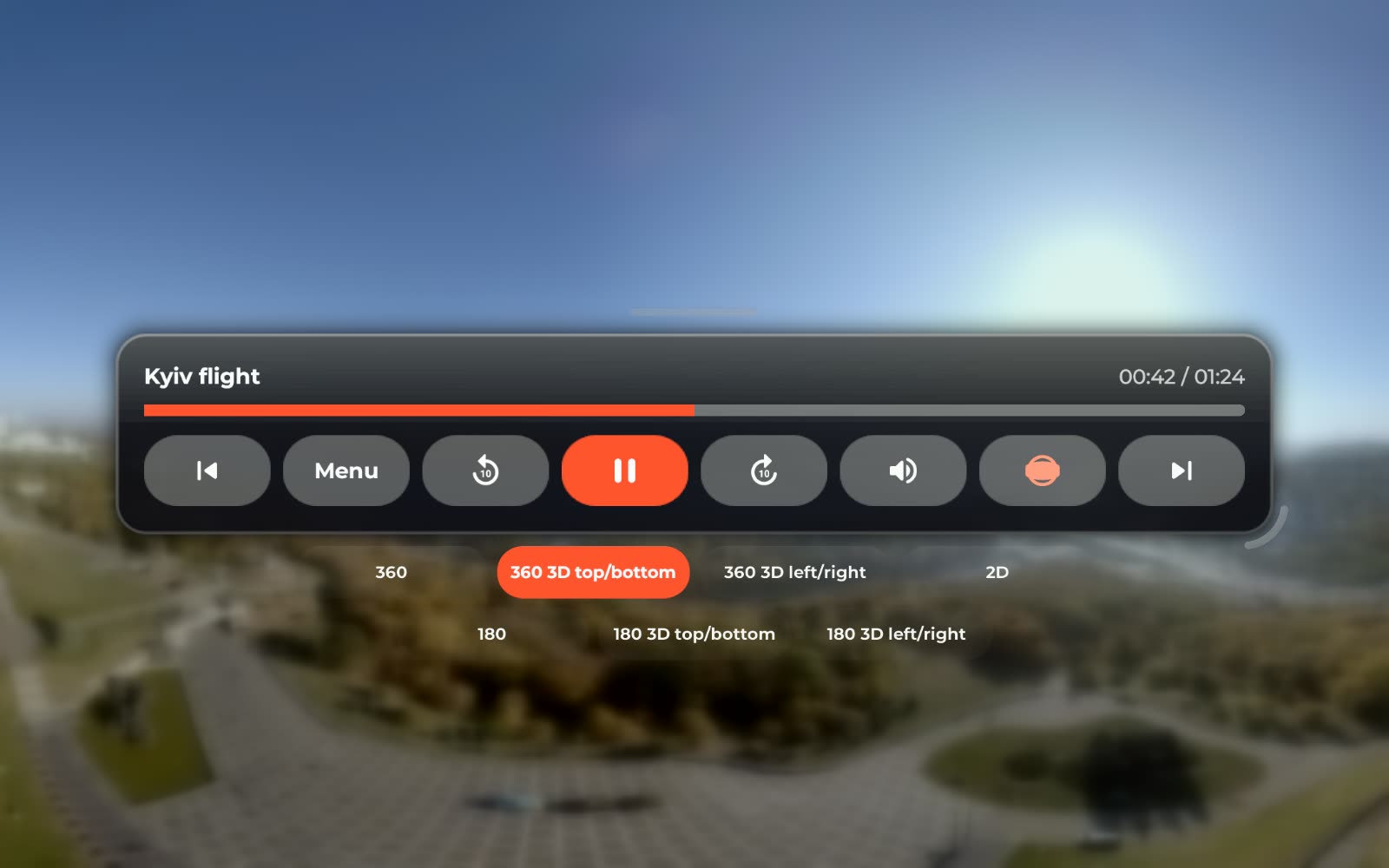
360° and 180°, 3D top/bottom and side‑by‑side (VR180), a flat 2D screen. The format comes from the file name or is picked with one tap and remembered for each video. Up to 8K — within the Quest hardware decoder.
Live streams

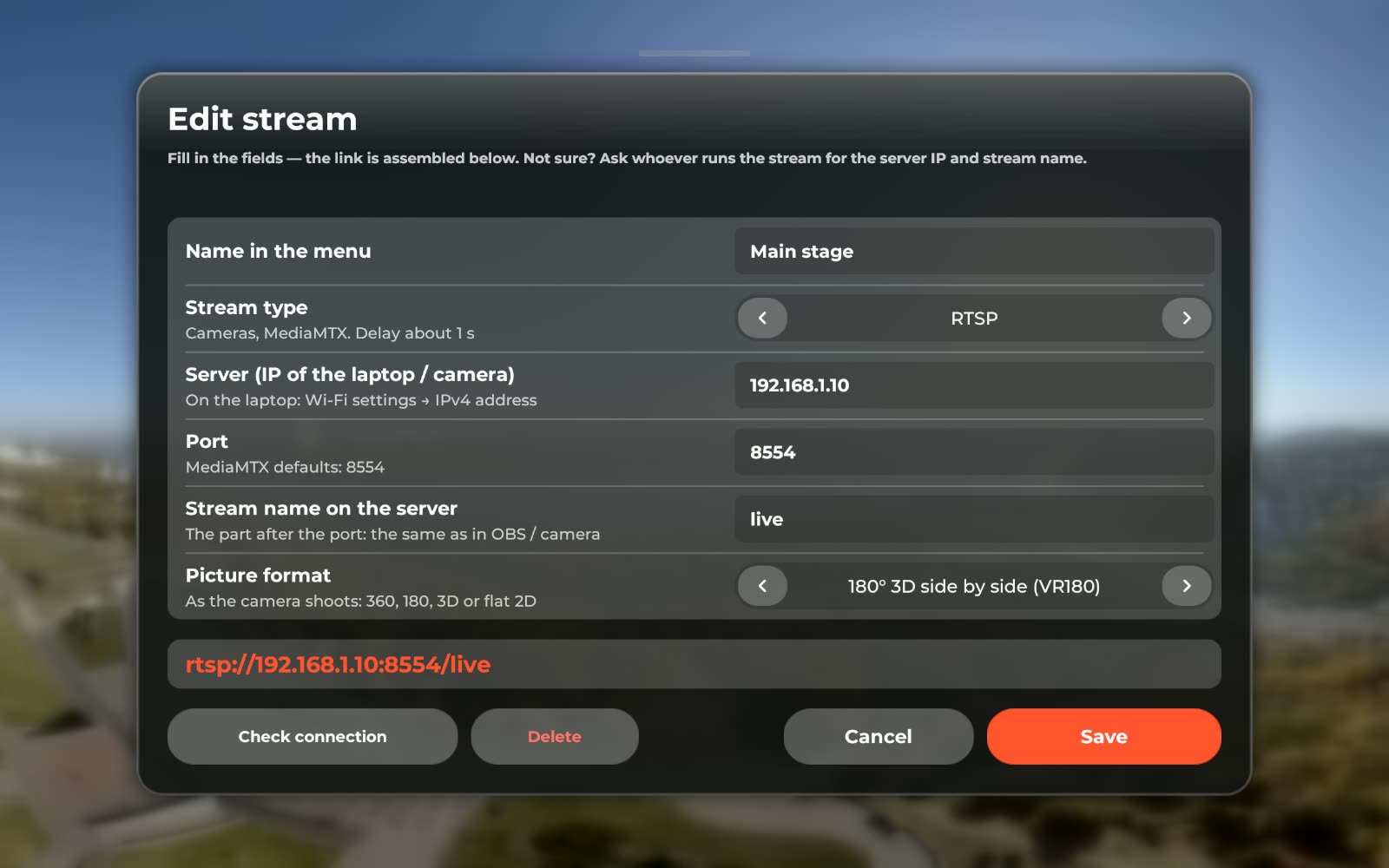
HLS, DASH, RTSP, RTMP and WebRTC (WHEP) with under a second of delay. Add a stream with a simple form — server, port, stream name. If the connection drops, the player waits and reconnects by itself.

Videos from your computer over Wi‑Fi

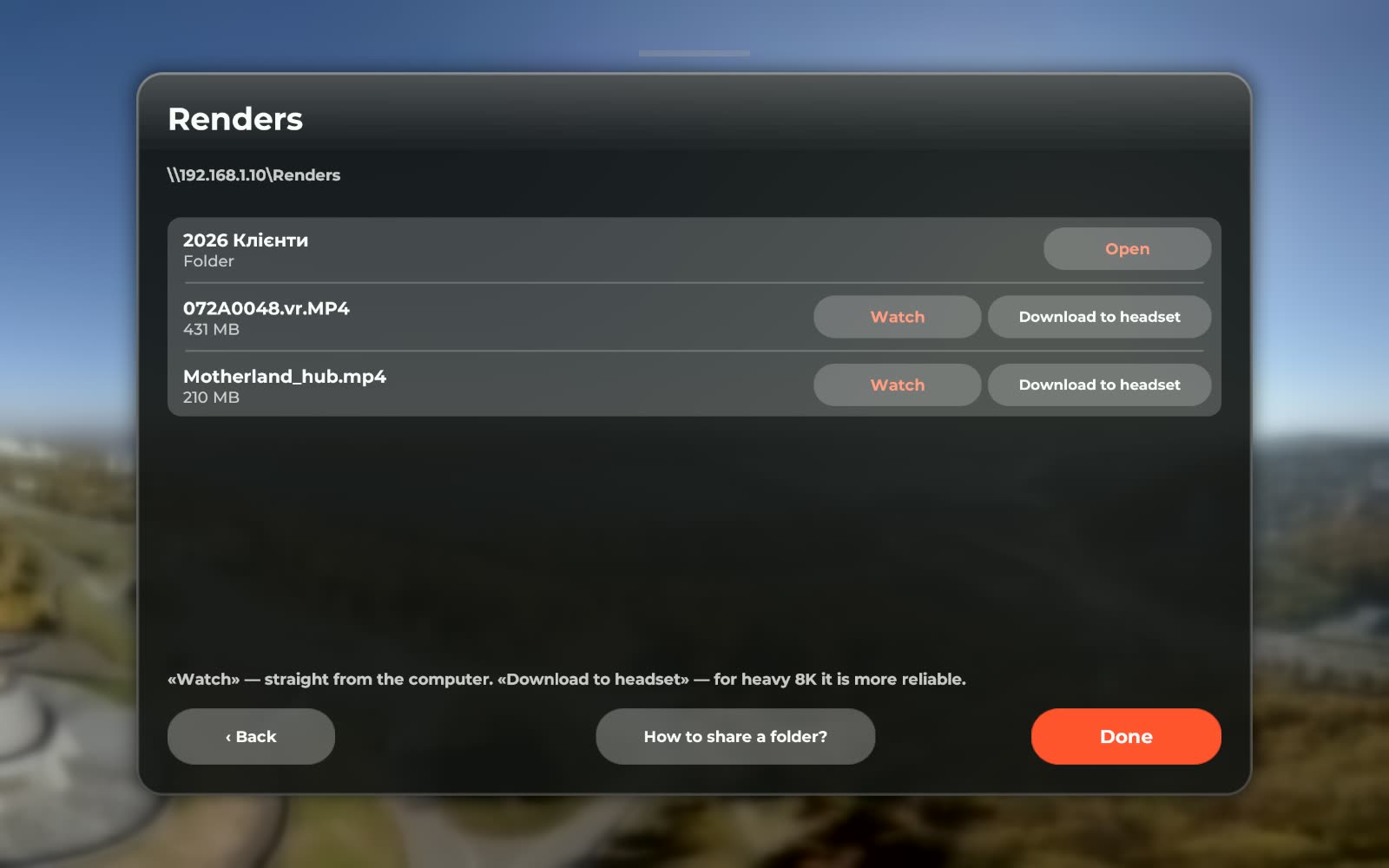
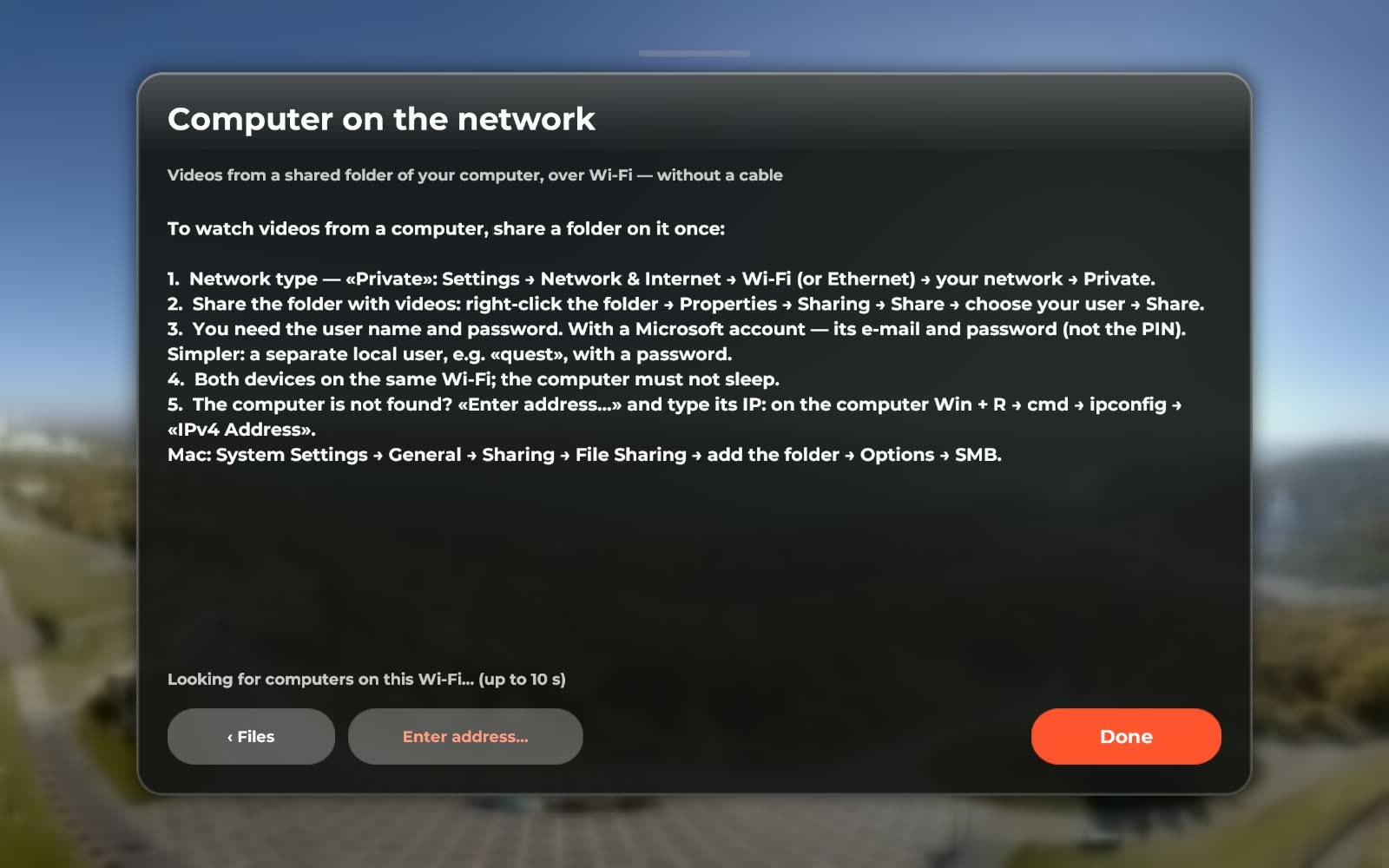
Share a folder on Windows or Mac and watch videos without a cable — or download a heavy file to the headset. The player remembers the last folder, and the setup guide is right on the screen.

Library

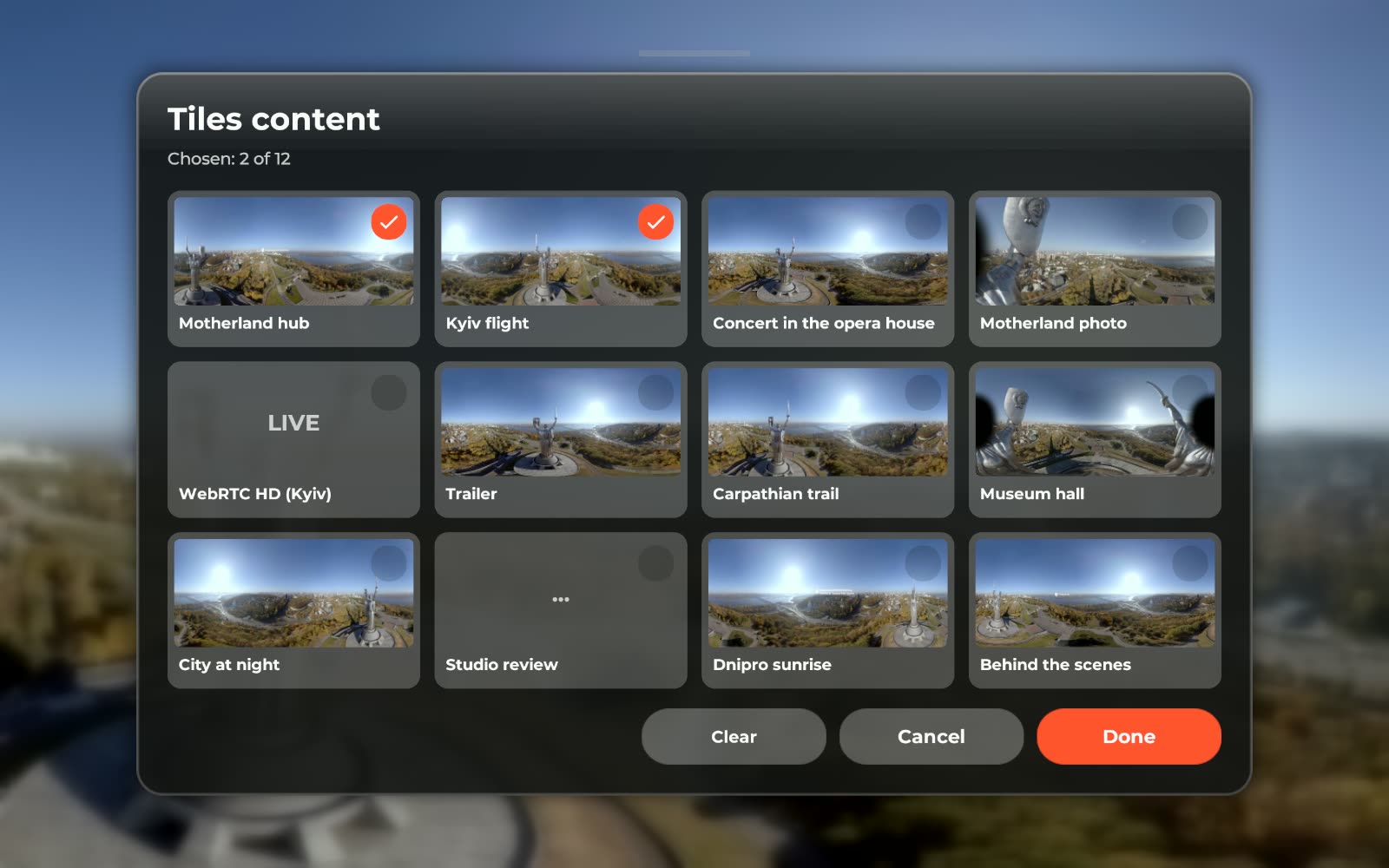
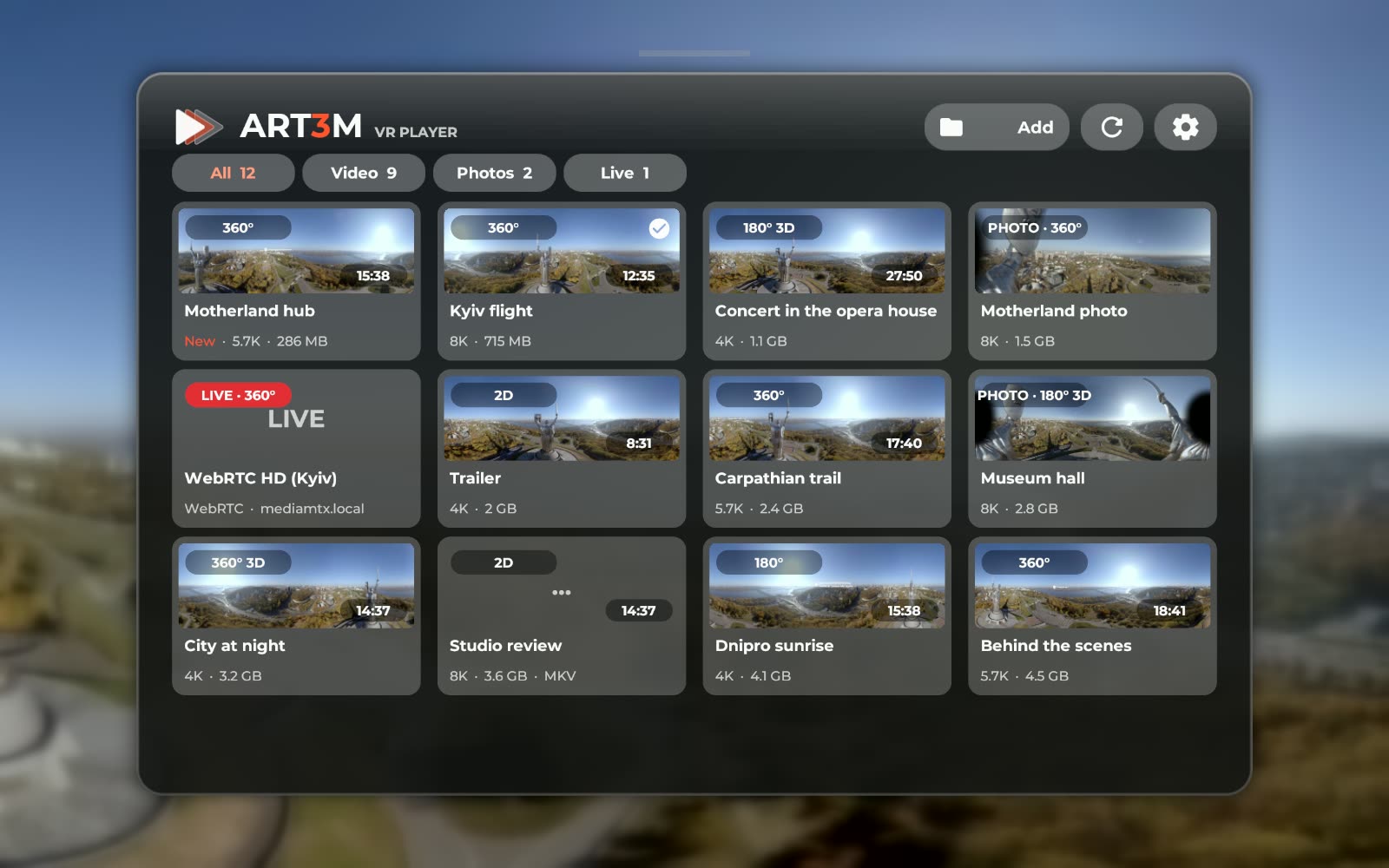
Tiles with thumbnails, duration, resolution and a “watched” mark; filters for video, photo and live. Videos from any headset folder or a USB drive. .srt / .vtt subtitles next to the file.

Pro tools

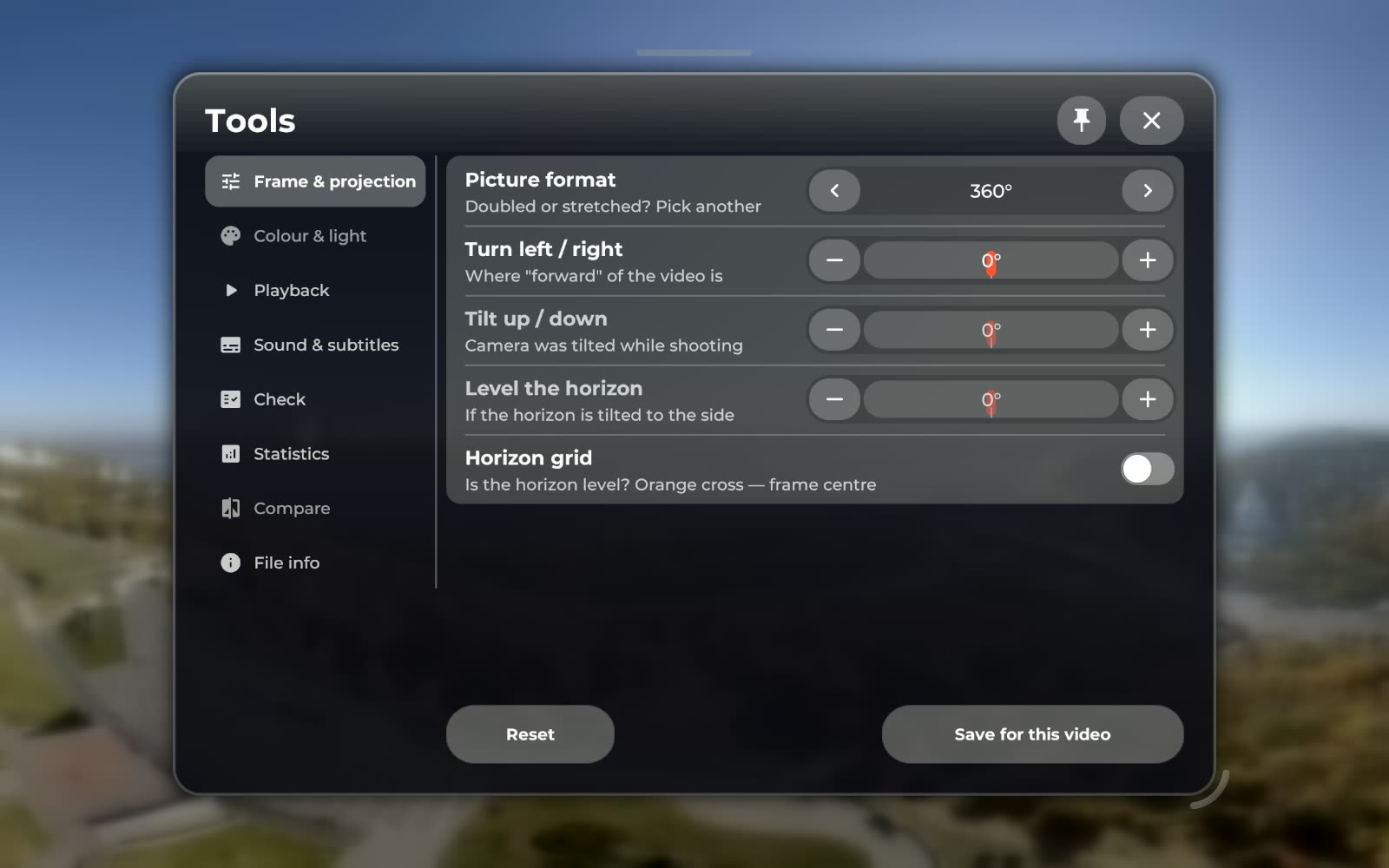
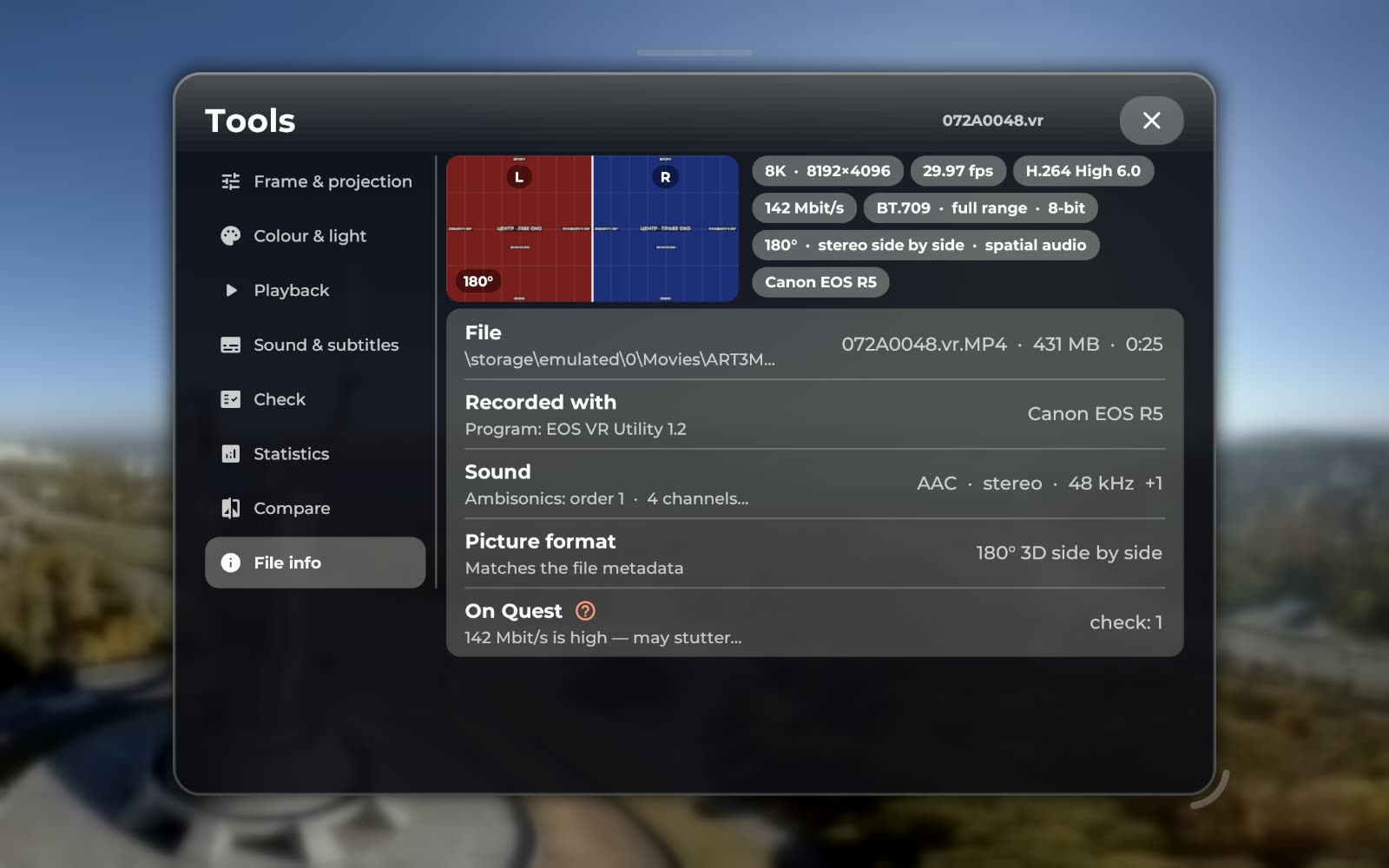
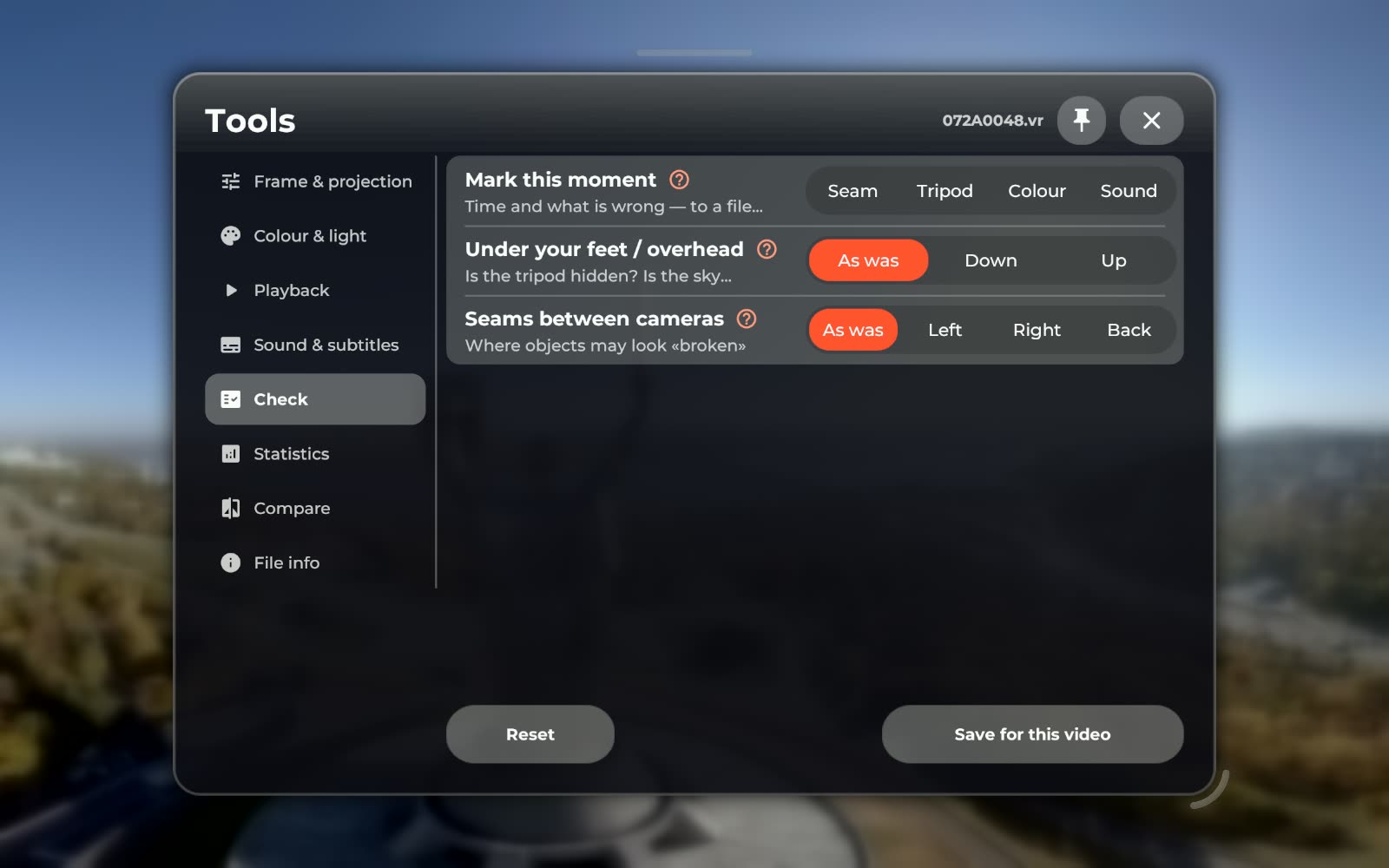
Turn, tilt, level the horizon with a horizon grid; brightness and contrast; File info (codec, bit rate, colour and HDR, spatial metadata); histogram and zebra; playback statistics; compare two versions; notes with timecode.

Expo for booths and museums

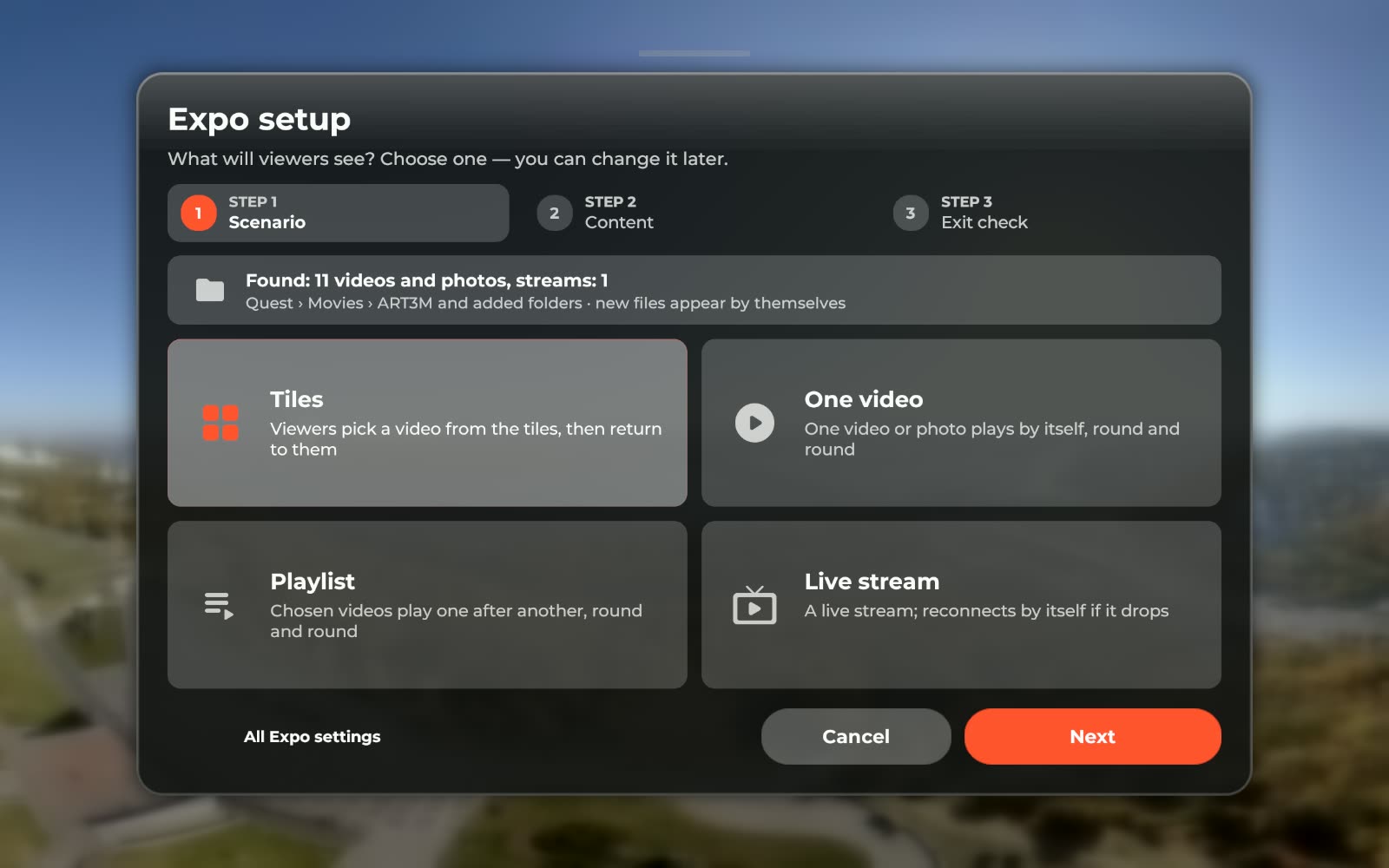
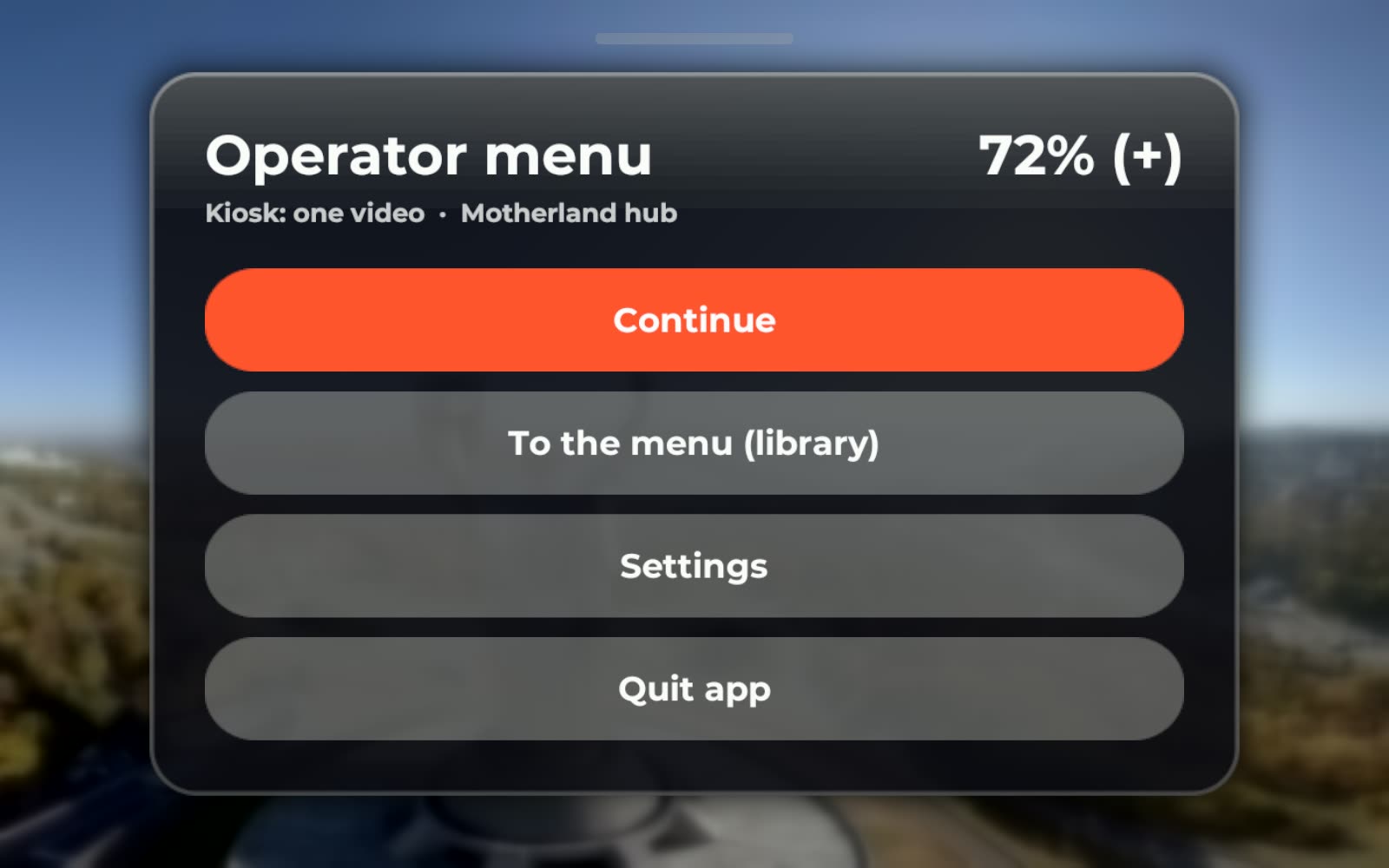
Visitors never see the menu: tiles, one video on loop, a playlist or a live stream. A three‑step wizard, an exit for the operator only (gesture + PIN), a new viewer as soon as the headset is put on. Set up one headset and copy the folder to the rest.

Controller or gaze

Controller in hand — ray and trigger; no controller — just look at a button. The “?” next to complex settings explains them in plain words. The interface speaks English and Ukrainian.

Privacy

No accounts, ads or cloud. The internet is only needed for streams. An anonymous journal of how the player works stays on the headset — you decide whether to send a report.

Three modes

One player — three ways to work with it

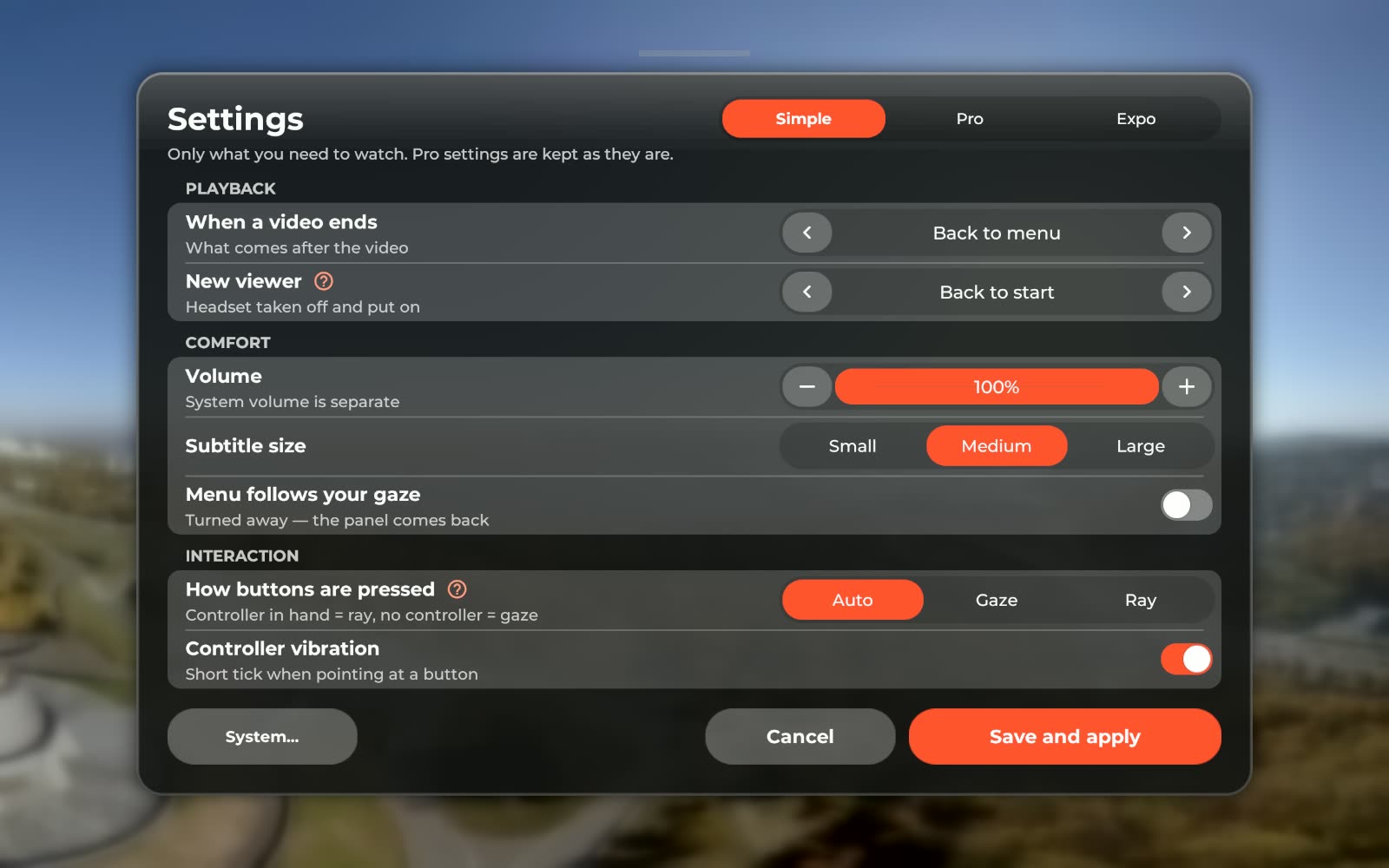
The mode is switched in the settings header and decides what people see, how many settings there are and how to exit.

SIMPLE

Simple

For people who just watch: at home, with friends, at a presentation.

  • A library of tiles and a three‑step welcome while it is empty
  • The format button opens all options in one row
  • Settings in four clear groups, no technical words
  • The front of the video is always where the viewer looks
PRO

Pro

For operators, editors and 360 filmmakers.

  • The Tools panel during playback: format, turn, horizon, light, sound, check, statistics, compare, file info
  • Tools can be laid out around you as separate panels
  • Settings saved for each video
  • Browse any folder, a USB drive or a computer on the network
EXPO

Expo

For booths, museums, exhibitions: visitors never see the menu.

  • Tiles, one video, a playlist or a live stream
  • A three‑step wizard that tests the exit gesture
  • Operator exit: hold Menu or look at the floor or ceiling, then PIN
  • A “Stand check” before opening
Use cases

Where the player already makes sense

Tourism booth at an exhibition

A dozen 360 city videos, a queue of visitors, one operator for several headsets.

Expo · tiles. Visitors pick a video and come back to the tiles after it. Headset off — the next person starts from the beginning.

Museum installation

One film, no interface at all, all day long.

Expo · one video. A clean frame: no panels, no cursor. Seamless loop and a reset when the headset lies still for a while.

Live stream from an event

A 360 camera on stage, a laptop with a streaming server, viewers in headsets in the hall.

RTMP · RTSP · HLS · WebRTC. A drop — “The stream will start soon” and an automatic reconnect.

Checking footage

Are the metadata right, is the horizon level, is it HDR, can Quest handle the bit rate?

Pro · File info, Light, Check. Notes with timecode are saved next to the video.

Client presentation

An agency shows a finished project in the meeting room — straight from a laptop over Wi‑Fi.

Computer on the network or Expo · playlist. Turn and format are remembered for each video.

Watching at home

Someone puts on a Quest for the first time and wants to watch their own 360 videos from a phone or camera.

Simple. Copy to a folder and watch. Gaze control without a controller.

Screens

What it looks like in the headset

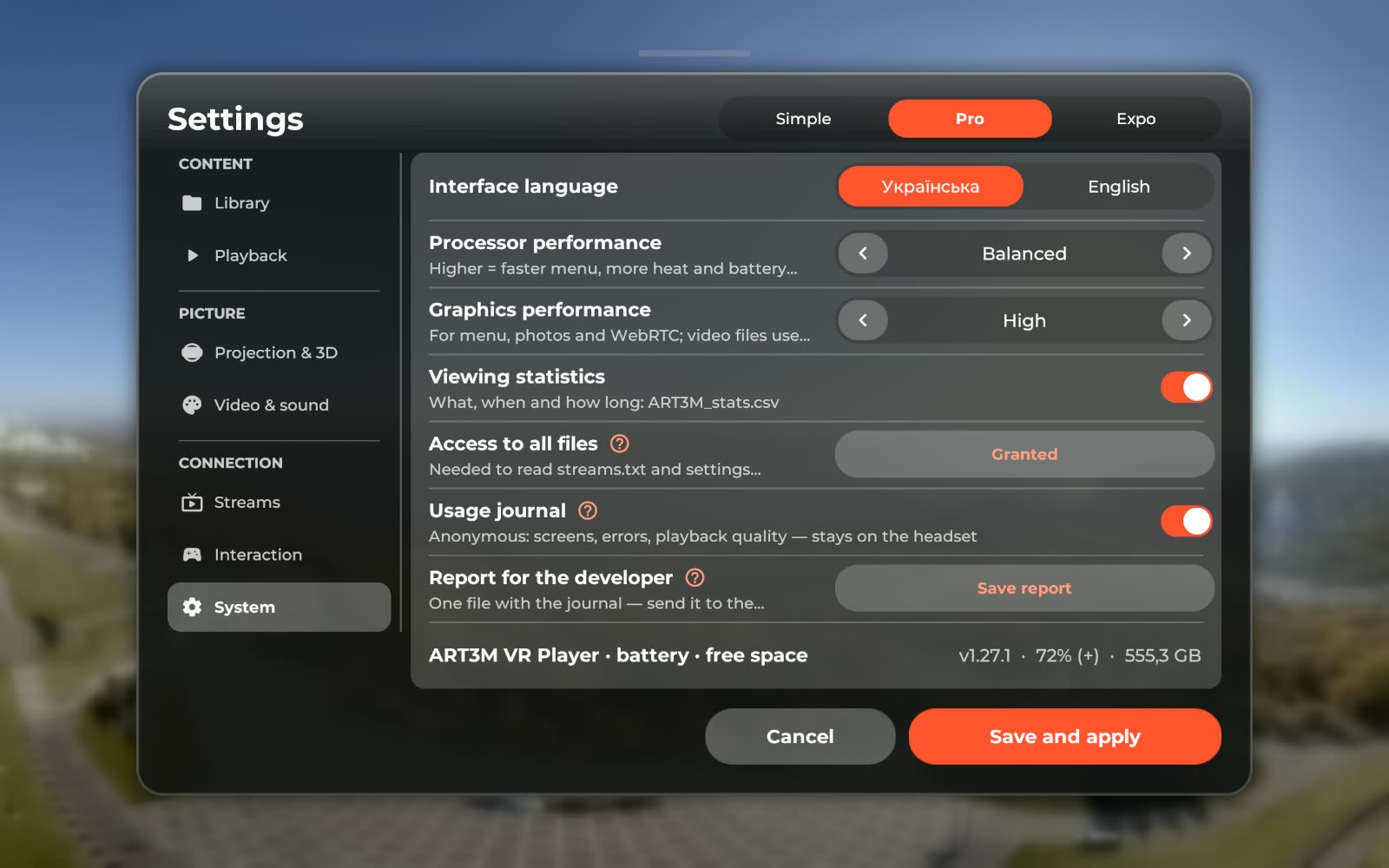
Glass panels over the video. The images are rendered from the same code that runs in the headset.
For testers

Help us make the player better

ART3M VR Player is in a closed alpha test on the Meta Horizon Store. We are looking for people who shoot, edit and show 360 video or run events with live streams — from any country. You need a Meta Quest 2, Pro, 3 or 3S.

How to join

  1. Open the alpha channel invite: meta.com/s/8lkIFujXnIn a browser on your phone or computer. Sign in with the same Meta account as on your headset and accept the invite.
  2. Install ART3M VR Player from the Store — in the headset or in the Meta Horizon app on your phone.Updates arrive automatically, like any other app.
  3. On first start, allow “Access to all files”.Without it videos still play, but the player cannot read stream lists and settings copied from a computer.
  4. Drop a line to artemkysliakov@gmail.com that you have joined — and your headset model.So I know whose reports to expect and can tell you when a new version is out. If the link does not open, write too.
Get the Alpha on Meta Store

Your videos on the headset

  1. Connect the headset with a USB‑C cable and allow access to data in the headset.
  2. Copy videos and photos to Quest › Movies › ART3M.
  3. Press the refresh arrow in the library.360° is the default. For other formats add a tag to the file name: _180, _TB (3D top/bottom), _LR (3D side‑by‑side), _2D. Or pick the format with the button while watching.

No cable: Add → Computer on Wi‑Fi… — videos from a shared Windows or Mac folder.

What to try (≈ 15 minutes)

ScenarioWhat to check
1. Videos on the headsetTiles with thumbnails; a video starts quickly; looking forward = the front of the video; the panel opens with the trigger or by looking down.
2. FormatsDuring a video, the format button: 360 / 180 / 3D / 2D. The choice is remembered for that video.
3. Computer on the networkAdd → Computer on Wi‑Fi… → find or enter your PC → sign in → open a folder → Watch and Download to headset.
4. Live streamIf you have a server (OBS, MediaMTX…): Settings → Streams → Add → Watch. Turn the server off and on — the player should wait by itself.
5. ModesSettings header: Simple / Pro / Expo. In Expo go through the wizard, test the exit gesture and start the show.
6. Headset off and onTake the headset off in the middle of a video and put it back on.

How to send a report

  1. Settings (gear) → System → Report for the developer → Save report.The path appears under the button: Quest › Movies › ART3M › reports › ART3M_report_DATE.jsonl.
  2. Connect the headset with a cable, allow access to data and copy the newest file from Movies/ART3M/reports.On a Mac use Android File Transfer or OpenMTP.
  3. Send the file to artemkysliakov@gmail.com with the subject “ART3M report”.Add a sentence or two: what went wrong and when. Screenshots (Meta button + trigger) are in Quest › Oculus › Screenshots.

What the report contains

  • Player version, headset model, language, operating mode
  • Which screens were opened and for how long, which buttons were pressed
  • Playback quality: source type, start time, stalls, dropped frames, resolution, frame rate, bit rate
  • Wi‑Fi: band (2.4 / 5 GHz), link speed and signal
  • Smoothness, battery and temperature, unexpected closes, errors

What is never recorded

  • File names, stream or web addresses, IP addresses
  • Computer and user names, passwords, PIN, anything you typed, the Wi‑Fi network name

The journal is never sent anywhere by itself. You can turn it off in Settings → System → Usage journal.

Good to know

  • Streams and 4K–8K videos from a computer need 5 GHz Wi‑Fi; on 2.4 GHz heavy files stop — use Download to headset.
  • HDR video is shown as regular video (looks paler) — the player warns about it in File info.
  • Found a problem but could not save a report? Just write what happened — that is enough.
Limits and plans

Honestly, what is not there yet

Known limits

  • HDR (PQ / HLG) is shown as SDR, without tone mapping.
  • Ambisonics is recognised, but the sound does not turn with your head yet.
  • Unstitched fisheye 180 / 190 / 200 is not supported.
  • A regular app cannot block the Meta button; a full kiosk needs Meta Horizon managed solutions or ArborXR.
  • 4K–8K over 2.4 GHz Wi‑Fi — only by downloading to the headset.

Next — based on your feedback

  • A weak Wi‑Fi hint before a stream starts.
  • Automatic switch to a lower stream quality when the network cannot keep up.
  • Fisheye, a passthrough menu background on Quest 3, stereo offset.
  • Your ideas — tell us what matters most to you.

Questions for people who shoot 360

  1. What do you check first in a file before showing it to a client — and what is missing in File info?
  2. Should the format from the metadata be applied automatically, or left to the viewer?
  3. Which cameras and formats do you bring to events (8K60, VR180, fisheye)?

Questions for people who show 360

  1. Is the operator exit gesture (looking at the floor / ceiling) clear to people who see a Quest for the first time?
  2. How many headsets are at your booth and how do you set them up today?
  3. What breaks most often during live streams at events?